The Paper WTN Problem
Every UK waste business has a version of this situation: a folder, a filing cabinet, or a cardboard box full of paper Waste Transfer Notes. Some go back years. Some are incomplete. Some are barely legible from being folded in a cab or rained on at a yard gate.
When an Environment Agency inspection happens, you need to find a specific note from 14 months ago. When a customer disputes a collection, you need the weight data from a WTN completed by a driver who has since left. When you want to understand your waste volumes for a quarterly return, you are manually counting paper.
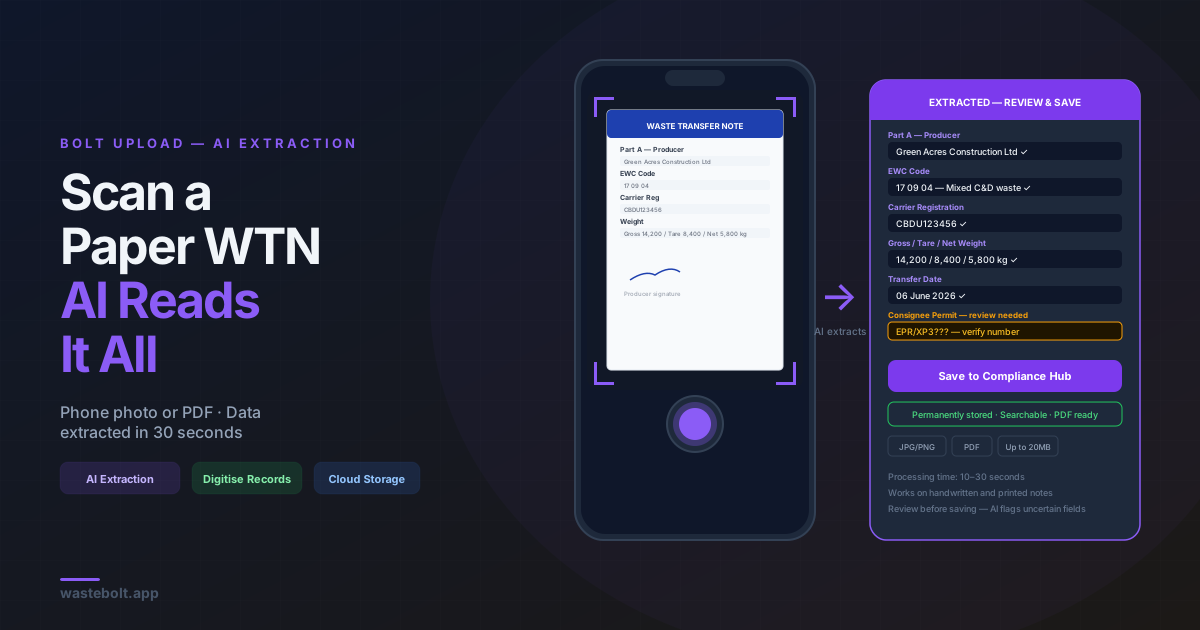
WasteBolt Bolt Upload solves this. Take a photo of any paper WTN with your phone — the AI reads it, extracts all the data, and creates a fully structured digital record in your Compliance Hub. The paper note stays where it is. The data is now searchable, permanent, and accessible from any device.
What Bolt Upload Does
Bolt Upload uses the bolt-wtn-extract AI engine — built on Claude's vision capability — to read the content of an uploaded image or PDF and identify the key fields of a Waste Transfer Note.
What it extracts:
- Producer name, address, and SIC code (Part A)
- Carrier name, address, and registration number (Part B)
- Consignee name, address, and permit number (Part C)
- EWC code and waste description (Part D)
- Physical form and containment type
- Gross, tare, and net weight
- Transfer date
- R or D code
- Comments and vehicle registration
The extracted data is presented in an editable form before saving — you can correct anything the AI misread, fill in fields that were illegible on the original, and confirm the EWC code is correct. Once saved, the note is stored in WasteBolt exactly as if it had been completed digitally from the start.
What You Can Upload
Bolt Upload accepts:
- Photos taken on a phone or tablet — JPG or PNG format. Works best with good lighting and the note flat on a surface, but handles reasonable angle and shadow.
- Scanned PDFs — a scan from an office scanner or a multifunction printer. Standard PDF format.
- Digital PDFs — WTN PDFs generated by another system that you need to bring into WasteBolt.
- Photos of handwritten notes — legibility matters here. Clear block capital handwriting extracts well. Scrawled cursive in pencil is harder. The AI will flag fields it is uncertain about.
File size limit: Up to 20 MB per upload.
Step-by-Step: Digitising a Paper WTN
Step 1 — Take a photo Lay the paper WTN flat. Take a photo in good light — daylight or a well-lit desk. Make sure all four corners of the note are visible and the text is in focus. Portrait orientation works better than landscape for standard A4 notes.
Step 2 — Open Bolt Upload in WasteBolt
Go to Add Waste Movement → Bolt Upload (or navigate directly to /bolt-upload). Tap the upload area and select your photo or PDF from your phone's camera roll or file browser.
Step 3 — Wait for extraction The AI processes the document in 10 to 30 seconds depending on the complexity of the note. A loading indicator shows progress.
Step 4 — Review the extracted data The extracted fields are displayed in a standard WTN form. Check each section:
- Is the EWC code correct? Verify it against the EWC code list if unsure.
- Are the carrier registration numbers in the right format (CBDU or CBDL)?
- Is the weight data correct — gross, tare, net?
- Is the transfer date right?
Correct anything that needs adjusting. The AI is accurate on clean, clearly printed notes but may need human correction on handwritten or damaged documents.
Step 5 — Save the note Once you are happy with the data, save the note. It is stored in your WasteBolt Compliance Hub with a timestamp and all the extracted data — fully searchable, permanently accessible, and available as a PDF download.
Bulk Digitisation: Clearing the Filing Cabinet
If you have a backlog of paper WTNs to digitise, Bolt Upload handles them one at a time but the process is fast enough to clear a significant backlog in an afternoon.
A practical approach for bulk digitisation:
- Sort notes chronologically — oldest first
- Work through them systematically — photo, upload, review, save
- Check each extraction takes under 2 minutes per note for clean documents
- File the physical notes in clearly labelled folders as a backup
For very large backlogs — years of paper records — consider using a scanner rather than a phone camera. A flatbed scanner produces cleaner, more consistent images that extract more accurately and faster.
Once digitised, your WasteBolt Compliance Hub becomes the searchable master record. You can filter by date range, customer, EWC code, or carrier to find any note in seconds.
Using Bolt Upload for Incoming Documents
Bolt Upload is also useful for documents you receive from third parties:
WTNs received from producers If a waste producer sends you a paper WTN or a PDF WTN from another system, upload it to Bolt Upload. The data is extracted and stored in WasteBolt — your copy of the transaction is now in your Compliance Hub even though it was not created in WasteBolt.
Consignment notes from hazardous waste contractors If a specialist contractor handles hazardous waste removal and provides you with a consignment note, upload it. The HP codes, consignment reference, and waste details are extracted and stored.
Historical records for audits If you are preparing for an EA inspection and need to consolidate records from multiple sources, Bolt Upload lets you bring everything into one searchable system quickly.
What Bolt Upload Cannot Do
Replace the original WTN obligation Bolt Upload digitises an existing document — it does not create a new legally valid WTN. If a paper WTN is incomplete or unsigned, uploading it does not make it compliant. The original compliance obligation exists at the point of transfer.
Read extremely damaged documents Faded thermal paper, heavily water-damaged notes, or documents where significant portions of text are illegible will produce incomplete extractions. The AI will extract what it can and flag uncertain fields, but human review is essential for damaged documents.
Handle non-standard formats perfectly WTNs from different systems use different layouts. Most standard UK WTN formats extract well. Highly non-standard or heavily branded formats may require more manual correction.
Frequently Asked Questions
Is Bolt Upload included in my WasteBolt subscription? Yes. Bolt Upload is available to all WasteBolt account holders as part of the Add Waste Movement workflow.
How accurate is the AI extraction? On clearly printed or typed WTNs in standard UK format, extraction accuracy is very high — most fields populate correctly with minimal correction needed. On handwritten notes, accuracy varies with legibility. Always review extracted data before saving.
Can I upload a WTN PDF that was generated by another system? Yes. Digital PDFs extract more accurately than photos since the text is machine-readable. If your current system generates PDF WTNs and you are migrating to WasteBolt, Bolt Upload is an efficient way to import historical records.
Does Bolt Upload work for hazardous waste consignment notes? Yes. Bolt Upload can extract data from consignment notes including HP codes and consignment reference numbers. Review the extracted HP codes carefully — these are critical fields for hazardous waste compliance.
What happens to the original photo or PDF after upload? The extracted data is stored in WasteBolt. The original image or PDF is not stored as an attachment — if you need to retain the original document image, keep it in your own file storage alongside the WasteBolt record.
Last updated: June 2026. Bolt Upload is available on all paid WasteBolt plans via Add Waste Movement → Bolt Upload.