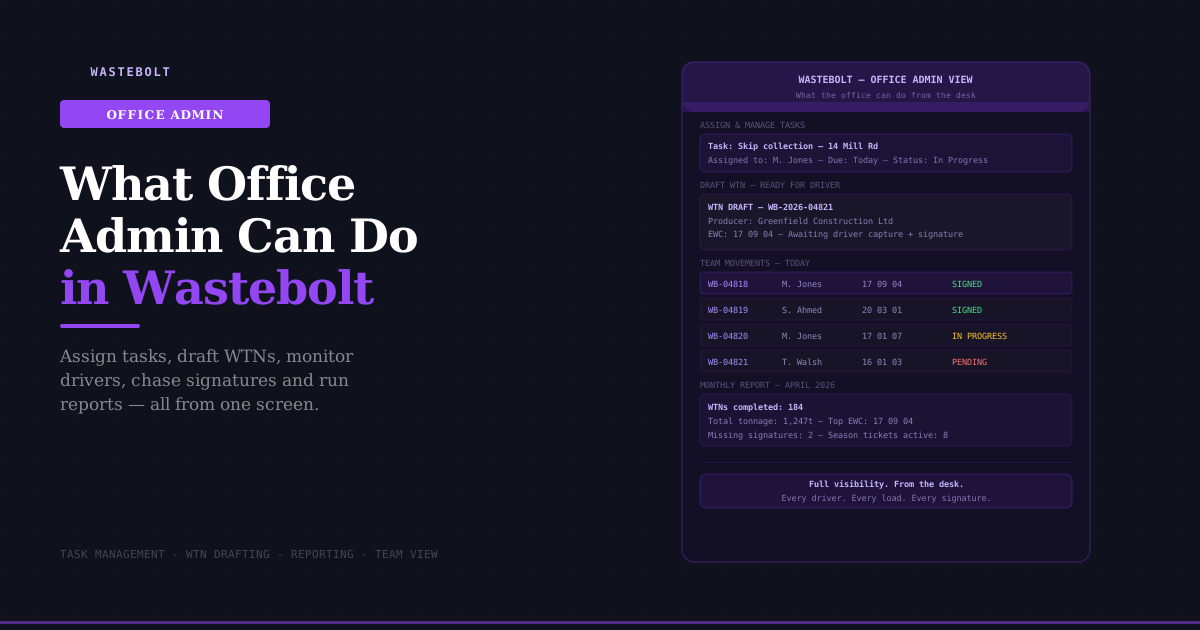
The Office Problem in Waste Management
Every waste carrier, skip hire company, and waste contractor has the same version of the same problem.
The drivers are out on the road. The paperwork is supposed to follow. But in practice, the admin person in the office spends a significant chunk of every day chasing: chasing drivers for completed WTNs, chasing customers for signatures, chasing proof that a load went where it was supposed to go. At the end of the month, pulling together any kind of accurate picture of what was moved, for who, and at what weight, involves digging through paper books, calling drivers, and cross-referencing against invoices.
This is the problem Wastebolt solves for the office — not just for the driver on the road.
This guide covers everything an office admin or back-office manager can do in Wastebolt from their desk, without needing to be on site or in a vehicle.
The Admin / Driver Split — How Wastebolt Works as a Team
Wastebolt is built around a clear split between two roles:
Admin users — typically the office, the manager, the compliance person. Full access to everything: create tasks, draft WTNs, view all team activity, run reports, manage customer and carrier pick lists, set up season tickets, handle subscriptions.
Seat users (drivers) — the people in the field. They see their assigned tasks, complete the task capture on their phone (vehicle, weights, photos, signature), and mark jobs done. They don't see other drivers' work or admin-only functions.
This split means the office is always in control of the compliance picture, while drivers have a clean and simple mobile interface that only shows what's relevant to them.
Everything below is what the admin can do from the desk.
1. Assign Jobs and Tasks to Drivers
The task manager in Wastebolt lets the admin create jobs and assign them to specific drivers before they leave the yard in the morning.
When creating a task, the admin sets:
- Customer name and address (selected from the pick-list or entered manually)
- Job type — skip collection, gully clean, road sweep, waste collection, or any custom job type you've configured
- Which driver the job is assigned to
- Due date
- Document type required — standard WTN, hazardous consignment note, or season ticket docket
- Any notes for the driver
The driver sees the task appear on their phone. They can view the customer details, navigate to the address, and when they arrive, complete the task capture — vehicle details, weights, waste photo, weighbridge photo if needed, and signature.
Why this matters for the office: No more morning briefings where you're reading out addresses and job details verbally. No more drivers writing customer names on scraps of paper. The job goes from the office screen directly to the driver's phone, with all the information they need already there.
2. Pre-Fill and Draft Waste Transfer Notes
One of the most time-consuming parts of WTN compliance is entering the same information repeatedly. The office admin can pre-populate WTN drafts before the driver leaves — pulling in customer details, EWC codes, carrier registration, and receiving site information from saved pick-lists.
What the admin can pre-fill:
- Producer / customer details from the customer pick-list
- Waste type and EWC code from the waste type pick-list
- Carrier details (your company, your vehicle fleet)
- Receiving site details
- Recovery or disposal code
- Season ticket reference if applicable
The driver then completes the remaining fields on site — actual weight, any notes, and the signature from the customer or receiving site. The WTN is completed in the field by the driver and immediately stored, with copies sent to all parties.
For hazardous waste: The admin can also draft the Hazardous Waste Consignment Note framework — setting the HP codes, waste description, and consignment note reference — so the driver doesn't have to navigate complex classification decisions on a phone screen at the roadside.
3. Monitor All Drivers and Movements in Real Time
The task manager gives the admin a live view of every job across the whole team:
- Todo — assigned but not started
- In Progress — driver has started the job
- Done — completed, WTN signed and stored
From the office, the admin can see at any point in the day which jobs are complete, which are running, and which are overdue. No phone calls to drivers asking "have you done the Mill Road job yet?" — the status is visible on screen.
For the compliance picture: The admin can also see which completed jobs have signed WTNs attached and which don't. Missing signatures show up immediately rather than being discovered weeks later when a filing cabinet is audited.
4. View All Waste Transfer Notes Across the Team
Every WTN created by any driver or admin in Wastebolt is visible to the admin in the central waste movements view. Searchable and filterable by:
- Date range
- Driver / seat user
- Customer
- EWC code / waste type
- Status (signed, draft, pending signature)
- Note type (WTN, hazardous consignment note, season ticket)
This gives the office a complete compliance record in real time — not a record that needs to be assembled manually at the end of the week.
For EA inspections: If an inspector arrives and asks to see WTNs for the last six months, the admin can pull up, filter, and show every note within seconds. No searching through paper books, no calling drivers to find out which jobs they did in March.
5. Chase and Manage Signatures
The signature is the step where paper-based compliance most commonly fails. The customer signs the WTN at collection. The receiving site signs on delivery. Copies get lost. The consignee return copy — legally required for hazardous waste — never arrives.
In Wastebolt, the admin can:
Send a signing link to a customer or consignee who wasn't present at the point of transfer. The link opens a secure page where they can review the note and sign digitally — no app download, no account needed. The completed signature is attached to the WTN automatically and all parties receive a PDF copy.
See which notes are missing signatures. The dashboard flags WTNs that are complete but unsigned, or where only one of the required parties has signed. The admin can chase from the office without needing to go back to site.
Monitor season ticket dockets. For customers on season tickets, the admin can see which dockets have been completed against each ticket, track quantities, and flag when a ticket is approaching its expiry date.
6. Manage Customer and Pick-List Data
The pick-lists are the foundation of efficient WTN creation — and building them is an admin function.
Customers: The admin builds and maintains the customer pick-list — name, address, and site postcode for every regular customer. When a driver or admin creates a WTN, selecting the customer auto-populates all the producer details.
Waste types: The admin configures the waste type pick-list — description, EWC code, physical form, recovery code — for every waste stream the business regularly handles. Standardising this means drivers always use the correct EWC code rather than guessing.
Vehicles: Vehicle registrations are stored in the pick-list. When creating a WTN or task, selecting the vehicle auto-populates the vehicle registration on the document.
Job types: Custom job types can be configured — useful for businesses where the job type (skip collection, gully clean, road sweep) needs to be recorded alongside the waste movement.
Why this matters: Five minutes building a pick-list entry for a new customer saves the same five minutes every single time that customer appears on a WTN. For a business with 50 regular customers doing 10 collections each per month, that's 500 data entry events per month replaced by a single pick-list selection.
7. Create and Manage Season Tickets
Season tickets are an admin function in Wastebolt. The admin creates the ticket — setting the producer, carrier, consignee, waste type, and validity period — and sends signing links to all three parties. Once signed, the season ticket is live and drivers can raise dockets against it for each subsequent collection.
From the office, the admin can:
- See all active season tickets and their expiry dates
- View the number of collections made against each ticket
- Receive alerts when tickets are approaching expiry
- Create renewal tickets ahead of expiry to maintain uninterrupted coverage
For a skip hire company with 20 regular commercial customers on season tickets, this replaces the equivalent of 20 new WTNs per collection cycle — potentially hundreds of saved documents per month.
8. Run Reports
The reporting function gives the admin a structured view of waste movements across any date range, filterable by customer, driver, waste type, or EWC code.
What the admin can report on:
Customer reports — total tonnage moved for each customer over a period, broken down by waste type and EWC code. Useful for invoicing reconciliation, customer review meetings, and demonstrating compliance to clients who require it.
Driver reports — number of WTNs completed per driver, tonnages collected, job completion rate. Useful for performance management and understanding workload distribution.
Waste type reports — total volumes by EWC code over a period. Useful for permit reporting, Environment Agency returns, and understanding which waste streams dominate your operation.
Missing documentation reports — WTNs that are unsigned, drafts that were never completed, jobs marked done without a signed note attached. This is the compliance audit report — run it monthly and fix gaps before they become an EA inspection finding.
Ask Bolt — for admin users, the Ask Bolt AI assistant lets you query your waste data in plain English. "Give me all customers who moved more than 50 tonnes last month and their waste types" produces an immediate answer without building a custom report. Particularly useful for ad hoc queries that don't fit a standard report format.
9. Prepare for DWT 2026 from the Office
From October 2026, permitted waste receiving sites must submit all incoming waste movement data to the EA's Digital Waste Tracking platform. For waste carriers and skip hire companies, the extended mandate covering carriers arrives from approximately October 2027.
The admin is the person who will need to manage this — not the driver. From the Wastebolt office view, the admin can:
- See which WTNs have been submitted to the DWT platform and which are pending
- View Waste Tracking IDs returned by the EA for each accepted submission
- Identify any submissions that failed validation and need correction
- Ensure all required data fields (EWC code, carrier registration, weight, container type, POPs flag) are complete before submission
Because Wastebolt captures DWT-compatible data at the point of WTN creation, there is no separate data entry step for DWT compliance. The data already exists — the admin simply ensures submissions are going through correctly.
10. Manage Subscriptions and Seat Users
The admin manages the team's access to Wastebolt — adding seat users (drivers) to the account, setting up their profiles, and managing the subscription tier.
Adding a driver: The admin creates a seat user account, which sends the driver an invitation to complete their profile on the Wastebolt app. Once set up, the driver appears in the task assignment list and their movements are visible in the team view.
Managing seats: Wastebolt's pricing is structured around admin accounts and driver seats. The admin can see current seat usage, add new drivers as the team grows, and upgrade the plan when additional seats are needed.
User management: If a driver leaves the business, the admin can deactivate their account. All historical WTNs associated with that driver remain accessible and searchable — compliance records are never lost when a driver moves on.
The Difference It Makes — Before and After
Before Wastebolt (paper and spreadsheets):
Monday morning: Admin writes out job sheets for 4 drivers. Drivers take paper WTN books. During the day: Admin has no visibility of what's happening. End of day: Drivers return with completed paper WTNs. Admin manually enters key data into a spreadsheet. Missing signatures are discovered. Admin phones the customer/consignee and asks them to sign a scanned copy. This may or may not happen. End of month: Admin manually compiles a report from the spreadsheet, cross-referenced against invoices. This takes most of a day.
After Wastebolt:
Monday morning: Admin creates tasks in Wastebolt in 20 minutes, assigns to each driver. Tasks appear on drivers' phones. During the day: Admin can see job statuses in real time. Any jobs stalling show up immediately. End of day: Completed WTNs are in the system, signed, PDFs distributed to all parties. Any missing signatures are flagged automatically — admin sends a signing link from the office. End of month: Admin pulls a customer tonnage report in 30 seconds. Ask Bolt answers any ad hoc queries instantly.
The admin's time on waste compliance drops significantly. The compliance record is complete, accurate, and instantly accessible.
Getting Started
Wastebolt's admin setup takes around 30 minutes:
- Create your account at wastebolt.app/register — 7-day free trial, no credit card
- Build your pick-lists — add your regular customers, waste types, and vehicles
- Add your drivers as seat users — they get an invitation and set up the app on their phones
- Create your first task and watch it appear on the driver's phone
- Complete a WTN end-to-end — from office creation through driver capture to signed PDF
Most teams are fully operational within the first day.
Frequently Asked Questions
Can the admin create WTNs without a driver being involved? Yes. The admin can create, complete, and sign WTNs entirely from the office where needed — for example, for waste movements the admin is directly involved in, or for retrospective documentation of movements where the driver has already collected all the information.
Can drivers see each other's jobs? No. Seat users (drivers) only see their own assigned tasks and their own WTNs. They do not have visibility of other drivers' work or any admin functions. The full team view is admin-only.
Can the admin see if a driver has opened a task? Yes — the task status updates in real time as the driver progresses through it. The admin can see when a task moves from todo to in progress and when it's marked done.
Can multiple admin users access the same account? Currently Wastebolt accounts have one primary admin with driver seat users. If you need multiple office staff to have admin-level access, contact the Wastebolt team to discuss your requirements.
Does the admin need to be in the office, or can they manage from anywhere? Wastebolt works on any device with a browser — desktop, laptop, tablet, or phone. The admin can manage tasks, view movements, and run reports from anywhere with an internet connection.
What happens to the records if we stop using Wastebolt? Your WTN records are legally required to be kept for a minimum of 2 years (3 in Scotland). Before ending a Wastebolt subscription, ensure you export or download your records. All WTNs can be exported as PDFs.
Last updated: May 2026.