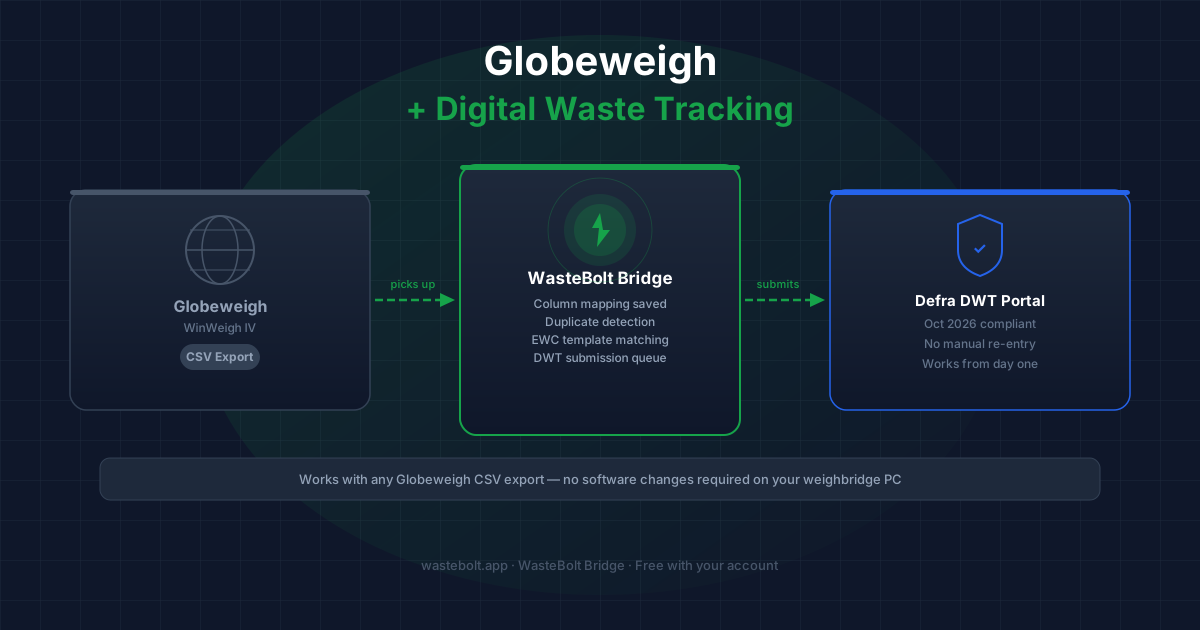
Globeweigh and Digital Waste Tracking 2026
If your site uses Globeweigh — or WinWeigh IV, the weighbridge software supplied through Globeweigh's parent company Weightron Bilanciai — you are probably wondering what you need to do before the Defra Digital Waste Tracking (DWT) mandate comes into force in October 2026.
Here is the honest picture.
Weightron Bilanciai has been working with Defra on DWT compatibility for WinWeigh IV. That is good news in the long run. However, the timeline for when that native module will be live and fully tested, and how straightforward the upgrade will be for existing Globeweigh customers, is not yet fully confirmed. For many site managers, waiting to find out is not a comfortable position when October 2026 is approaching.
WasteBolt Gatehouse is the ready-now alternative. It connects your existing Globeweigh setup to the DWT portal today — using the CSV export your system already produces — without touching your weighbridge software or waiting for a vendor update.
How Globeweigh Exports Data
Most Globeweigh and WinWeigh installations include a CSV or delimited text export function. This is the same output used for reporting and accounting integrations. WasteBolt Gatehouse uses exactly this export as its input.
Your Globeweigh system keeps working exactly as it does today. The only addition is configuring it to auto-export transactions to a specific folder (or running a manual export at the end of each shift). Bridge watches that folder and handles everything from there.
Setting Up WasteBolt Gatehouse With Globeweigh
1. Export from Globeweigh In WinWeigh or your Globeweigh reporting module, set up a scheduled or manual CSV export to a designated folder on your weighbridge PC. Most WinWeigh installations have a report scheduler that can automate this.
2. Install WasteBolt Gatehouse Download Bridge from your WasteBolt account (Settings → Integrations) and install it on the weighbridge PC. Sign in with your WasteBolt credentials.
3. Select the export folder In Bridge settings, point it at the folder Globeweigh is exporting to. Bridge starts monitoring immediately.
4. Map your Globeweigh columns Upload a sample CSV from Globeweigh and map each column to the corresponding WasteBolt field — ticket number, net weight, tare, gross, date, vehicle reg, customer name, and any others you capture. This is a one-time setup.
5. Create Import Templates For each material type your site handles, create an Import Template in WasteBolt assigning the correct EWC code and waste description. Bridge will auto-match incoming loads to the right template based on the material or product name from your Globeweigh CSV.
6. Review and submit to DWT Staged records appear in Import Review inside your WasteBolt account. Matched records are submitted to the Defra portal in a single click. Your Globeweigh weighbridge reference number is preserved throughout as the docket number.
What About the Native WinWeigh DWT Module?
If Weightron Bilanciai releases a fully certified, production-ready DWT module for WinWeigh IV and your site is on a current support contract that includes the upgrade, that may eventually be the right long-term path for your system.
WasteBolt Gatehouse is the right choice if:
- You need to be DWT compliant before that module is confirmed and live
- Your site is on an older Globeweigh or WinWeigh version that may not qualify for the update
- You want a compliance layer that also handles WTN generation, e-signatures, and reporting — not just DWT submission
- You manage multiple sites running different weighbridge software and want one unified system
Which Globeweigh Data Fields Map to DWT?
| DWT field | Globeweigh / WinWeigh equivalent |
|---|---|
| Waste producer | Customer / account |
| Net weight | Net weight |
| Date of movement | Transaction date |
| Vehicle | Vehicle registration |
| Docket reference | Ticket / transaction number |
| EWC code | Set via WasteBolt Import Template |
| Waste description | Set via WasteBolt Import Template |
Ready to Connect Your Globeweigh System?
WasteBolt Gatehouse is included with every WasteBolt account. You can have it running with your Globeweigh CSV export in under an hour.