The Problem With Legacy Weighbridge Systems and DWT 2026
From October 2026, every controlled waste movement in England must be recorded in the Defra Digital Waste Tracking (DWT) portal. That is straightforward if you are using modern compliance software. It is significantly less straightforward if you are running a weighbridge from 2008 that still works perfectly well — but outputs a CSV file.
Most weighbridge platforms — older Loadmaster installs, Masswinn, Globeweigh, RecyClass, and a long list of bespoke in-house systems — do one thing brilliantly: they record accurate weights, manage vehicle queues, and print dockets. What they were not designed to do is generate legally compliant Waste Transfer Notes (WTNs), apply EWC codes, or push data into a government-mandated digital portal.
That leaves site managers with three options:
- Replace the weighbridge software entirely — expensive, disruptive, and often unnecessary when the hardware itself works fine
- Re-key every transaction manually — time-consuming and error-prone at volume
- Use bridging software — connect your existing weighbridge output to DWT without changing anything on your current system
Option 3 is what WasteBolt Gatehouse is built for.
What Is Weighbridge Bridging Software?
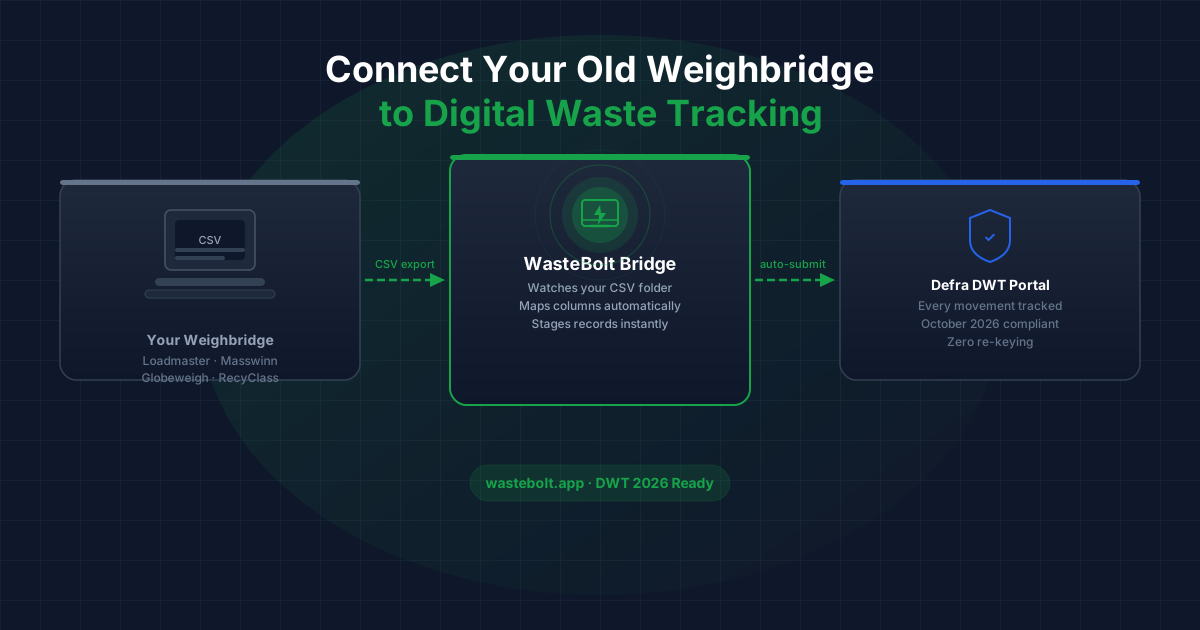
Bridging software sits between your weighbridge and the DWT portal. Your weighbridge software keeps doing exactly what it does today — recording weights, printing tickets, managing queues. You just configure it to auto-export a CSV to a monitored folder at the end of each shift or day.
WasteBolt Gatehouse watches that folder. When a new CSV appears, Bridge picks it up instantly, maps your column headers to WasteBolt fields (a one-time setup), stages the records for review, and queues them for DWT submission. No re-keying. No duplicate data entry. No changes to your weighbridge workflow.
Step-by-Step: Connecting a Legacy Weighbridge to DWT
Step 1 — Set your weighbridge software to export CSV Most weighbridge systems include a CSV, TXT, or delimited export option. Set it to auto-export to a specific folder at the end of each shift or at a scheduled time. If your system requires a manual export, that works too — Bridge picks up files as soon as they land in the folder.
Step 2 — Install WasteBolt Gatehouse Download WasteBolt Gatehouse from your WasteBolt account under Settings → Integrations. Run the installer on your weighbridge PC — it takes under two minutes. Sign in with your existing WasteBolt credentials.
Step 3 — Point Bridge at the export folder In Bridge settings, select the folder your weighbridge software exports to. Bridge starts watching it immediately and will pick up any new files as they arrive.
Step 4 — Map your CSV columns When the first CSV comes in, you will see your column headers listed. Tell Bridge which column corresponds to ticket number, net weight, date, vehicle registration, and so on. You only do this once — Bridge saves the mapping as a template and applies it to every file from that point forward.
Step 5 — Set up import templates Your weighbridge probably does not store EWC codes or formal waste descriptions. WasteBolt handles this through Import Templates — you create a template per material type (for example, mixed construction waste, scrap metal, or wood) and set the EWC code, waste description, and any other fixed fields. When Bridge stages new records, it auto-matches them to the right template based on the product or material name in your CSV.
Step 6 — Review and submit to DWT Staged records appear in your WasteBolt account under Import Review. Matched records can be submitted to the Defra DWT portal in one click. The full audit trail — weighbridge docket number, weights, vehicle, customer — is preserved throughout.
What Data Does Your Weighbridge Already Have?
The DWT portal requires specific fields. Here is how typical weighbridge data maps:
| DWT requirement | What your weighbridge records |
|---|---|
| Waste producer | Customer / account name |
| Net weight | Net weight in kg or tonnes |
| Date of movement | Date in / date out |
| Vehicle | Vehicle registration |
| Reference / docket number | Ticket or transaction number |
| EWC code | Assigned via WasteBolt Import Template |
| Waste description | Assigned via WasteBolt Import Template |
EWC codes and formal waste descriptions are the only fields that typically need supplementing. WasteBolt Import Templates handle this automatically once you have set them up.
Will This Work With My Weighbridge Software?
If your weighbridge software can export a CSV or delimited text file, WasteBolt Gatehouse can work with it. That covers virtually all common UK weighbridge platforms:
- Loadmaster
- Masswinn
- Globeweigh (WinWeigh)
- RecyClass
- Whitman
- Avery Weigh-Tronix systems with CSV export
- Most bespoke and in-house weighbridge solutions
The only systems that cannot use Bridge directly are those that generate PDF dockets only with no data export. If that describes your setup, get in touch — we can advise on workarounds.
How Long Does Setup Take?
Most sites are running within an hour:
- Download and install Bridge: ~5 minutes
- Sign in and configure the watch folder: ~2 minutes
- Upload a sample CSV and map the columns: ~10–15 minutes
- Create Import Templates for your material types: ~20–30 minutes
After that, Bridge runs in the background automatically. New CSV files trigger a sync without anyone having to intervene.
No Need to Replace Your Weighbridge
The DWT mandate is not an instruction to replace working equipment. It is a requirement to submit data digitally. If your weighbridge produces a CSV, you already have the data — WasteBolt Gatehouse is simply the pipe that moves it to the right place.
Download WasteBolt Gatehouse from your WasteBolt account, or read the full setup guide for detailed instructions.