Defra provides a free spreadsheet template for permitted waste-receiving sites that don't have access to approved API software. It's called the "Report receipt of waste" spreadsheet, and from October 2026 it becomes one of only two ways to meet your Digital Waste Tracking (DWT) obligation — the other being approved software like WasteBolt.
This post walks through exactly what the Defra spreadsheet contains, what you're required to fill in, and the practical realities of using it for a real site handling multiple loads per day.
Prefer to watch? We recorded a full walkthrough of the spreadsheet, tab by tab, including a live demo submission: Watch the video on YouTube.
What's in the Defra DWT spreadsheet?
The spreadsheet has 8 tabs:
- Coversheet — introduction and table of contents
- 1. Guidance — instructions for completing the spreadsheet
- 2. Data definitions — explanations of every field
- 3. EWC codes — the full European Waste Catalogue (hundreds of entries)
- 4. Disposal and recovery codes — R1–R13 and D1–D15
- 5. POP name and codes — persistent organic pollutant reference codes
- 6. Haz property codes — HP1–HP15 and HP_POP
- 7. Waste movement level — the first data entry sheet
- 8. Waste item level — the second data entry sheet
Tabs 1–6 are reference material. Tabs 7 and 8 are where you actually enter data — and they are separate sheets that must be linked manually using your own unique reference number.
Tab 7 — Waste movement level (29 columns)
This is where you record the movement-level details: who brought the waste, when it arrived, and the carrier details. There are 29 columns across mandatory, conditional mandatory, and optional categories.
The mandatory fields include your site name, address, postcode, authorisation number, date and time received, carrier registration number, carrier organisation name, and means of transport. Date and time must be entered in the exact format dd/mm/yyyy hh:mm:ss in the London/Europe timezone — for example 01/01/2026 09:30:00. Any deviation may cause rejection.
The conditional mandatory fields include the hazardous waste consignment code (required if the waste is hazardous) and vehicle registration number (required if transported by road). If you don't have a carrier registration number, you must select from a specific list of approved reasons: ON_SITE, HOUSEHOLD, ONE_OFF, or MARINE. You cannot write your own reason — the cell must contain one of these exact strings.
There are also two columns you must not populate yourself: the error column and the Waste Tracking ID column. Defra populates these after submission.
Tab 8 — Waste item level (18 columns)
This is where you record the waste itself — EWC codes, descriptions, weights, hazardous classifications, and disposal codes. Tab 8 must be linked to Tab 7 using the same unique reference you entered there.
The fields here include some of the most complex data entry in the whole template:
EWC codes — must be entered without spaces. If you enter only one EWC code, you must prefix it with a single apostrophe (') to prevent Excel auto-formatting it as a date. Multiple EWC codes must be separated by a semicolon.
POPs data — if the waste contains persistent organic pollutants, you must enter the POP code and concentration value in the format ALD = 50; PCDD_PCDF = 25 — POP code, equals sign, concentration in mg/kg, semicolons between multiple entries. The codes come from Tab 5.
Hazardous property codes — if the waste is hazardous, you must enter HP codes in the format HP_1 ; HP_3 (note the spaces around the semicolon). The codes come from Tab 6.
Component concentrations — chemical or biological component names and concentrations follow the same equals-sign syntax: Cadmium = 50; Trichloroethylene = 25.
Disposal and recovery codes — each D or R code must include the code, weight, unit of measurement, and whether the weight is estimated or actual, all in one cell: D12 = 30 = kg = Estimate; R10 = 10 = kg = Actual.
Formatting rules you must not break
Defra is explicit that the following will prevent your spreadsheet being processed:
- You must not change any formatting
- You must not copy the data onto a blank Excel spreadsheet
- You must not overwrite the original format
- You must not insert comments into the spreadsheet
If you do any of these — even inadvertently — your submission may be silently rejected. There is no warning before upload; you find out after the fact when the error column populates.
The two working day deadline
You have two working days from the day after receiving the waste to submit your report. So if waste arrives on Monday, you must submit by end of Wednesday. This applies to every individual load, every day.
For a site receiving 20 loads per day, that means maintaining a rolling two-day window of spreadsheet submissions. Each load needs its own row in Tab 7 and Tab 8, linked by unique reference, with all mandatory fields correctly populated in the exact required format.
Updating a submitted record
If you need to correct a submitted record, you can only do so if Defra has already returned a Waste Tracking ID for that movement. You need to enter the Waste Tracking ID in the appropriate column, make your corrections, and resubmit the spreadsheet. There is no in-place edit — you are essentially resubmitting with the ID as the amendment flag.
What the spreadsheet cannot cover
Even if you use the spreadsheet correctly, there are waste types it cannot handle at all. The guidance is clear that you cannot use the spreadsheet to report:
- Exemptions
- Dangerous goods
- Article VII waste
These must continue to use paper-based methods regardless.
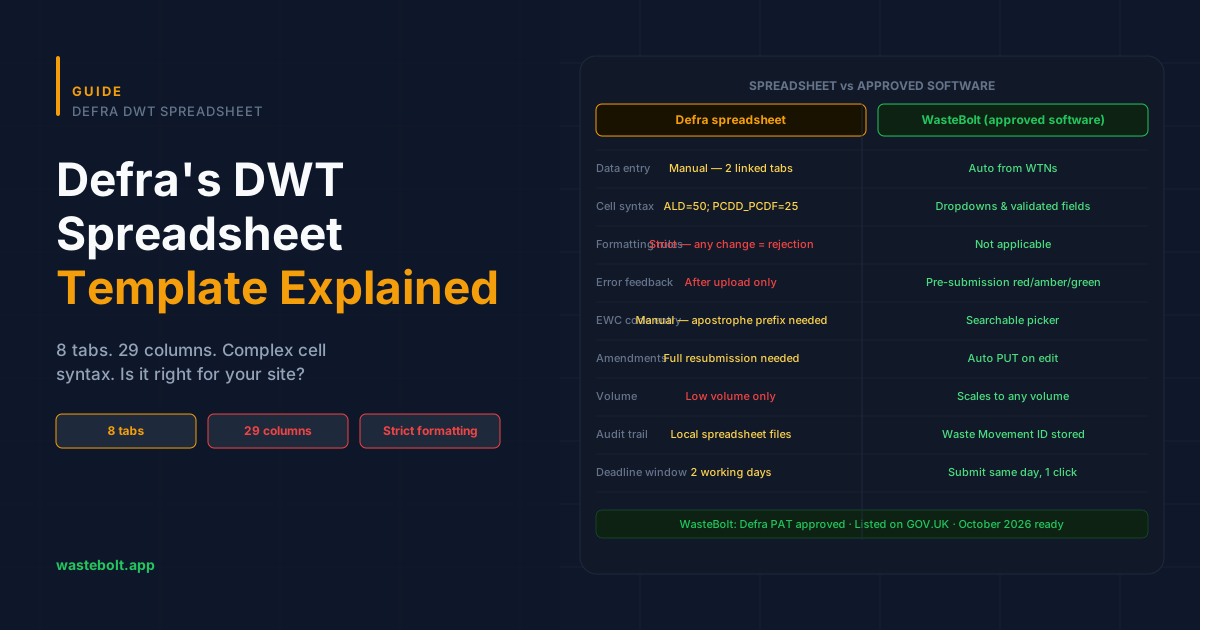
Spreadsheet vs approved software — a practical comparison
For a site receiving a handful of loads per week, the spreadsheet is manageable. For anything more than that, the overhead compounds quickly.
| Defra spreadsheet | WasteBolt (approved software) | |
|---|---|---|
| Data entry | Manual — 29 + 18 columns across two linked tabs | Automatic — pulls from existing WTNs and weighbridge data |
| Cell syntax | Complex — equals signs, semicolons, apostrophes, exact strings | None — dropdowns and validated fields |
| Formatting rules | Strict — any deviation may cause rejection | Not applicable |
| EWC code entry | Manual — must prefix with apostrophe to avoid date formatting | Searchable picker — no formatting issues |
| POPs and Haz data | Manual cell syntax — ALD = 50; PCDD_PCDF = 25 |
Captured in WTN form — mapped automatically |
| Submission | Upload via GOV.UK | One click from WasteBolt |
| Error feedback | After upload only — error column populates post-submission | Pre-submission validation — red/amber/green before you submit |
| Amendments | Requires Waste Tracking ID, full resubmission | PUT request sent automatically on edit |
| Audit trail | Spreadsheet files on your local system | Stored in WasteBolt with Waste Movement ID against each record |
| Volume | Practical for very low volume only | Scales to any volume |
Is the Defra spreadsheet right for your site?
The spreadsheet is a legitimate option for sites with very low waste receipt volumes — perhaps a handful of loads per month — where the overhead of learning the template is manageable and the submission frequency is low enough to handle manually.
For most permitted transfer stations, MRFs, weighbridge-based facilities, or any site receiving waste daily, the spreadsheet will quickly become a significant administrative burden. The strict formatting rules, the complex cell syntax for POPs and hazardous data, and the two-working-day submission window all create risk of error and non-compliance at volume.
WasteBolt is a DWT software provider, listed on GOV.UK, that handles the same underlying obligation automatically. Data you already capture in WTNs and weighbridge records maps directly to the DWT submission — no tabs, no cell syntax, no formatting rules.
You can start a free 7-day trial with no credit card required, or read our step-by-step guide to setting up DWT credentials if you're ready to connect your site.
Not sure where you stand ahead of October 2026? Take our free DWT Readiness Check for a personalised compliance score in under two minutes.