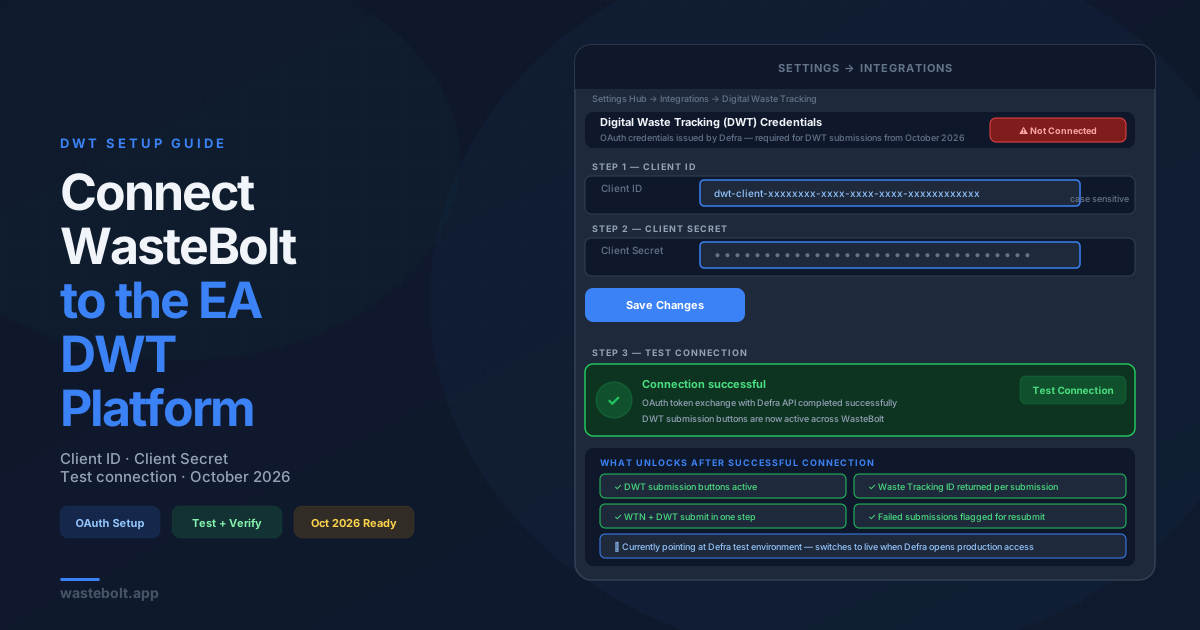
What You Need to Connect WasteBolt to Digital Waste Tracking
Connecting WasteBolt to Defra's live Digital Waste Tracking (DWT) service requires just one thing from you: your Defra API Code.
This is a UUID (format: xxxxxxxx-xxxx-xxxx-xxxx-xxxxxxxxxxxx) that Defra issues to each registered waste receiving site via the waste tracking service portal. WasteBolt handles platform-level OAuth authentication with Defra centrally — you don't need to provide a Client ID or Client Secret.
Without a valid API Code saved in WasteBolt, DWT submission buttons are disabled across the platform and an alert appears on your DWT hub.
Where to Get Your Defra API Code
Your API Code is in the Defra waste tracking service portal under your organisation's account.
Not yet registered? Go to gov.uk/guidance/report-receipt-of-waste and register your organisation. You'll need a Government Gateway or GOV.UK One Login account and your site's environmental permit or exemption reference number. Defra will issue a unique API Code on registration.
Already registered? Log into the Defra waste tracking portal. Your API Code is on your account's API settings page — it's a UUID that looks like 5c377626-78e6-4a8f-8a16-fd9315b7855d. Copy it from there.
Haven't received one yet? Contact Defra at wasteuserresearch@defra.gov.uk.
Step-by-Step: Adding Your API Code in WasteBolt
Step 1 — Go to Settings → Integrations
In WasteBolt, navigate to Settings Hub → Integrations (or go directly to /settings/integrations). You need admin access — seat users cannot access this page.
Scroll to the Digital Waste Tracking (DWT) section.
Step 2 — Paste your API Code
Click the Defra API Code field and paste the UUID exactly as provided by Defra. Do not include spaces before or after the code.
Step 3 — Save
Click Save. Your API Code is stored securely against your admin account.
Step 4 — Test the Connection
Click Test Connection. WasteBolt verifies three things in sequence:
- Your API Code is a valid UUID format
- Platform-level OAuth authentication with Defra's production service works
- Defra's production API endpoint is reachable
- Green tick — Connected: Everything is working. DWT submission buttons are now active across the platform.
- Red warning — Failed: See the troubleshooting section below.
What Happens After You Connect
Once your API Code is saved and the connection test passes:
- DWT submission buttons become active on your Digital Waste Tracking hub
- Waste movements in WasteBolt — WTNs, dockets, and weighbridge movements — can be submitted to Defra's live production DWT service
- Successful submissions return a Waste Tracking ID stored against each movement record
- Failed submissions are flagged with an error reason for correction and resubmission
Your API Code remains active until Defra revokes it — you don't need to re-enter it after each session.
Troubleshooting
"API Code format is invalid" Verify the code is a properly formatted UUID. If you copied it from an email or document, paste into a plain text editor first to strip any hidden characters, then copy into WasteBolt.
"Could not authenticate with Defra" This is a platform-level issue unrelated to your API Code. Try again in a few minutes. If it persists, contact WasteBolt support.
"Defra API responded with an error" Defra's service may be temporarily unavailable. Wait a few minutes and try again.
Connection test passes but DWT submissions still blocked Refresh the page. If still blocked, check your site's permit or authorisation number is entered correctly in your WasteBolt profile settings — this is required for submission.
Removing or Updating Your API Code
To update — paste the new API Code into the field and click Save. No need to remove the existing code first.
To remove — click the Remove button. DWT submission is immediately disabled until a new code is entered.
Frequently Asked Questions
Do I need to provide a Client ID or Client Secret? No. WasteBolt manages platform-level authentication with Defra centrally. You only need to enter your site's unique Defra API Code.
Where exactly is the API Code in the Defra portal? Log into the Defra waste tracking service with Government Gateway or GOV.UK One Login. Your API Code is in your account settings under an "API code" section. If you can't locate it, contact Defra at wasteuserresearch@defra.gov.uk.
Do I need a separate API Code for each site? Yes — each registered waste receiving site has its own API Code from Defra. If you manage multiple sites under one WasteBolt account, contact WasteBolt support.
Is WasteBolt connected to the live Defra environment? Yes. WasteBolt now connects to Defra's production environment. Submissions create real regulatory records and count toward your DWT compliance obligations. Do not submit test or dummy data.
Can I see my API Code after saving? Yes — the API Code field displays the saved value so you can verify it is correct at any time.
Is my API Code secure in WasteBolt? Your API Code is stored in WasteBolt's database and only used server-side when submitting waste movements to Defra. It is not exposed to the client browser.
Last updated: June 2026. DWT API Codes are entered at Settings → Integrations in WasteBolt. The October 2026 mandate applies to all permitted waste receiving sites in England, Wales, and Northern Ireland.