Before You Start
To pass a waste transfer note or docket to another business, two things need to be in place:
- Both businesses must have active WasteBolt accounts.
- You must have an accepted connection with the other business on WasteBolt Linked.
If you have not yet connected with the business, go to My Site → WasteBolt Linked and send them a connection request first. Once they accept, you can begin passing documents.
Passing a Waste Transfer Note
Step 1 — Open the WTN
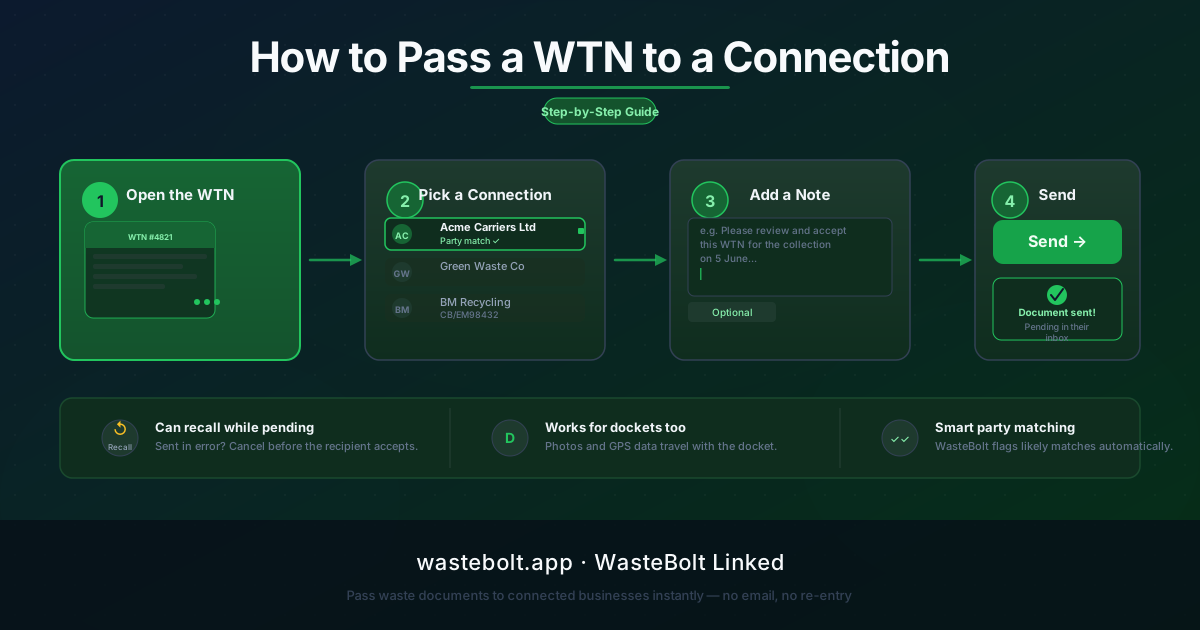
Go to Waste Transfer Notes in the main menu and open the note you want to pass. On the note's action menu (the three-dot or context menu), select Pass to Connection.
Step 2 — Choose a Connection
The Pass to Connection dialog lists all your active WasteBolt Linked connections. Each connection shows the company name and, where available, their waste carrier licence number.
Connections that appear as a producer, carrier, or consignee on the WTN are highlighted with a Party match badge. This is a helpful indicator, but you are not restricted to party-matched connections — you can send to any of your connections.
Step 3 — Add a Note (Optional)
Once you have selected a connection, an optional message field appears. Use this to give the recipient any context — for example, the collection date, the site reference, or any special instructions. This message is visible to the recipient alongside the document.
Step 4 — Send
Click Send. If the connection is not a party match on the WTN, WasteBolt will flag this with a warning and ask you to confirm before sending. This is a safeguard against accidentally sending to the wrong business.
Once sent, the transfer appears in your Sent list on the Linked Transfers page with a status of Pending.
What Happens on the Recipient's Side
The recipient sees the transfer in their Inbox on the Linked Transfers page. The card shows:
- The WTN number and key details
- Your company name as the sender
- Any message you attached
- Accept and Decline buttons
If they accept, WasteBolt creates a full copy of the WTN in their account — their own record they can view, sign, and work with independently. If they decline, the transfer is marked as rejected and you will see this in your sent history.
Recalling a Transfer
If you sent a document in error, or need to make changes before the recipient sees it, you can recall the transfer while it is still pending. Open the Sent tab on the Linked Transfers page, find the pending transfer, and use the Recall option.
Recalled transfers are removed from the recipient's inbox. You can correct the underlying document and send it again.
Passing a Docket
The process for passing a docket is identical. From the Dockets section, open the docket's action menu and select Pass to Connection.
All docket data is transferred — including attached photos and GPS coordinates. The recipient gets a full copy of the docket including any photographic evidence captured at the time of collection or delivery.
Note: Dockets that are part of a season ticket cannot be passed to a connection. Season ticket loads are read-only within WasteBolt Linked to preserve the integrity of the seasonal agreement.
Monitoring Your Transfers
The Linked Transfers page (My Site → WasteBolt Linked → Transfers) is the central view for all passing activity. The Inbox tab shows documents waiting for your action. The Sent tab shows your full outbound history with statuses: Pending, Accepted, Declined, or Recalled.
Your WasteBolt dashboard also shows a count of incoming pending transfers if any are waiting for your attention.