Watch the tutorial
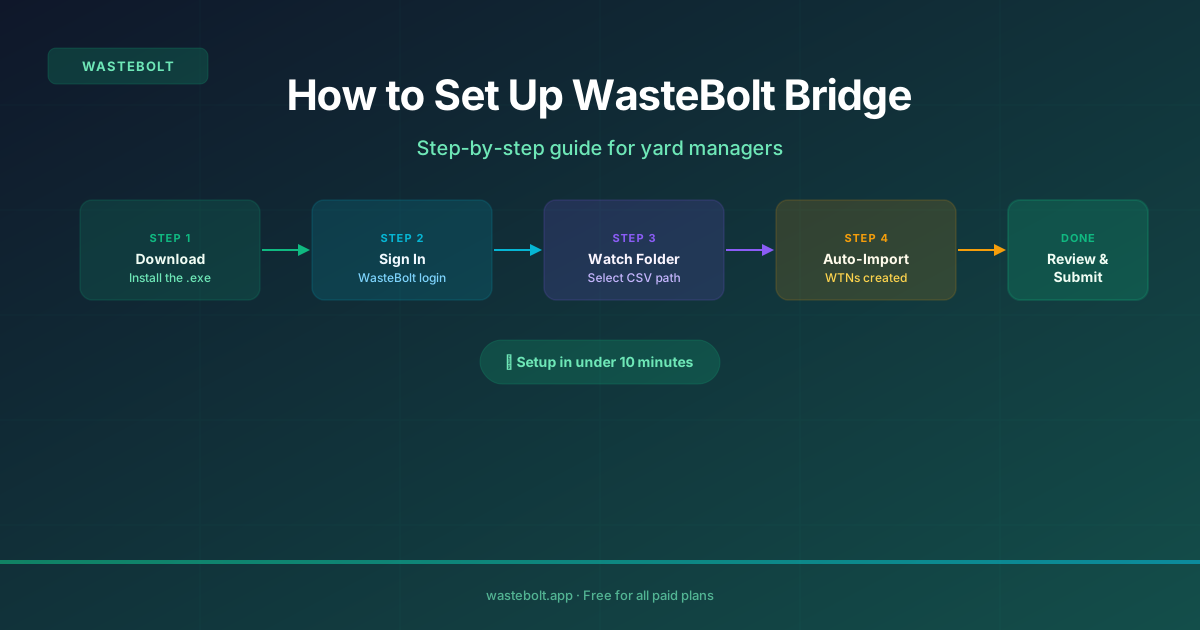
WasteBolt Bridge is a free Windows desktop app that watches a folder on your yard office computer for new CSV exports from your weighbridge software. When a file appears, Bridge reads it, applies your column mapping, and creates staged WTN records in WasteBolt automatically. Setup takes around 10 minutes.
What You Need
A WasteBolt account (any paid plan), a Windows PC that stays on during weighbridge hours, and your weighbridge software set to export CSV to a specific folder.
Step 1: Download WasteBolt Bridge
Download the free installer and run it on your yard office PC. No admin rights required on most systems.
Step 2: Sign In
Use the same email and password you use on WasteBolt. No API key or separate credentials needed. Tick Remember me on this device for a dedicated yard computer.
Step 3: Set Your Watch Folder
In Bridge Settings, select the folder your weighbridge exports CSV files to — for example C:\WeighbridgeExports\ or C:\Globeweigh\Exports\
Step 4: Set Up Column Mapping in WasteBolt
In WasteBolt go to Import Data then Import Templates and create a new template. Upload a sample CSV from your weighbridge. Map each column to a WTN field: Company/Producer (required), Net Weight (required), Vehicle Reg, Ticket ID, Date In. Save it — Bridge uses this mapping on every import.
Step 5: Add Import Templates
Templates auto-fill WTN details for matching loads. Set a rule like Company Name contains ACME and auto-fill producer details, EWC code, carrier, and optionally link to a Season Ticket. Once set, Bridge applies these rules on every import with no manual input.
Step 6: Start Bridge
Press Start Sync. Bridge checks the watch folder immediately then monitors continuously. New CSV files are processed within seconds.
Step 7: Review in WasteBolt
Go to Import Data then Import Review. Matched records are ready — click Process All Matched to create WTNs. Records in Needs Attention can be reviewed and assigned templates manually.
Optionally enable Start with Windows in Settings so Bridge runs automatically on every boot.