Watch the tutorial
Column mapping tells WasteBolt which CSV column is vehicle reg and which is net weight. But a WTN also needs producer details, carrier details, consignee, EWC code, and recovery code — none of which come from a weighbridge ticket. That is what Import Templates solve.
What Is an Import Template?
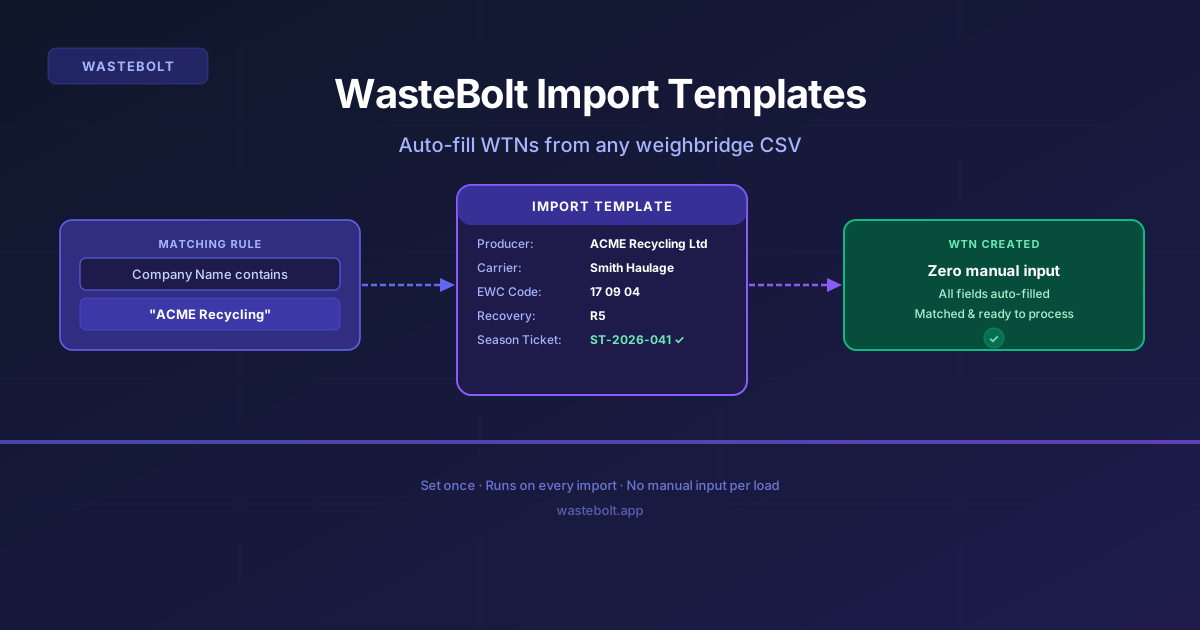
An Import Template is a saved rule set that says: when an imported record matches these criteria, auto-fill these WTN details.
Example: Rule — Company Name contains "ACME Recycling". Auto-fill — Producer = ACME Recycling Ltd (from pick list), Carrier = Smith Haulage, EWC = 17 09 04, Recovery code = R5, link to Season Ticket ST-2026-041.
When WasteBolt Bridge imports a CSV and finds a row from ACME Recycling, this template applies automatically. The WTN record has everything filled in.
Why Templates Matter for Bridge
Without templates, every imported record lands in Import Review with only the raw weighbridge data — weight, vehicle reg, company name. Someone still has to fill in the EWC code and assign producer and carrier manually.
With templates, matched records are genuinely zero-touch. Bridge imports the CSV, the template fills in the WTN details, and you click Process All Matched. That is the entire workflow.
How Matching Rules Work
Each rule checks a field from the imported CSV against a value: equals, contains, starts with, or ends with. Rules use AND logic — all rules must match for the template to apply. Templates are checked highest-priority first — the first match wins.
What a Template Can Auto-Fill
Producer, Carrier, and Consignee — choose from your own site, a customer from your pick list, or a manual override. Waste Details including EWC code, physical form, container type, and recovery/disposal code. Season Ticket link — matching imports become dockets against that ticket rather than standalone WTNs.
Setting Up a Template
In WasteBolt go to Import Data then Import Templates then New Template. Name it, set the type (WTN or Docket), add your matching rules, set producer/carrier/consignee from your pick lists, select the waste type and EWC code, link a Season Ticket if needed, set the priority, and save.
Catch-All Templates
A template with no rules matches every record that no other template matched. Useful as a default that at least fills in your site consignee details so records do not sit permanently in Needs Attention.
One Template Per Customer, Set Once
The most common setup is one template per regular customer, each linked to their Season Ticket. Once set up — typically 30 to 60 minutes for a site with a dozen regular customers — every subsequent weighbridge import is fully automatic. Bridge imports the file, templates match each load, Process All Matched creates the WTNs.