The Three-Signature Problem
A Waste Transfer Note requires signatures from three parties — the waste producer, the carrier, and the consignee (receiving site). All three must sign before the note is fully compliant.
In a paper-based workflow, getting all three signatures is logistically painful. The producer signs when the carrier arrives. The carrier signs on collection. The consignee signs on receipt — but by the time the waste reaches the receiving site, the paper note may have been left in the cab, blown away in the yard, or not sent on with the load at all.
Digital WTN platforms solve the on-site signing part — the producer and carrier can sign on a phone or tablet at the point of collection. But the consignee signing remotely, after the waste has arrived at a separate facility, is still a common gap.
WasteBolt signing links solve this completely.
What a Signing Link Is
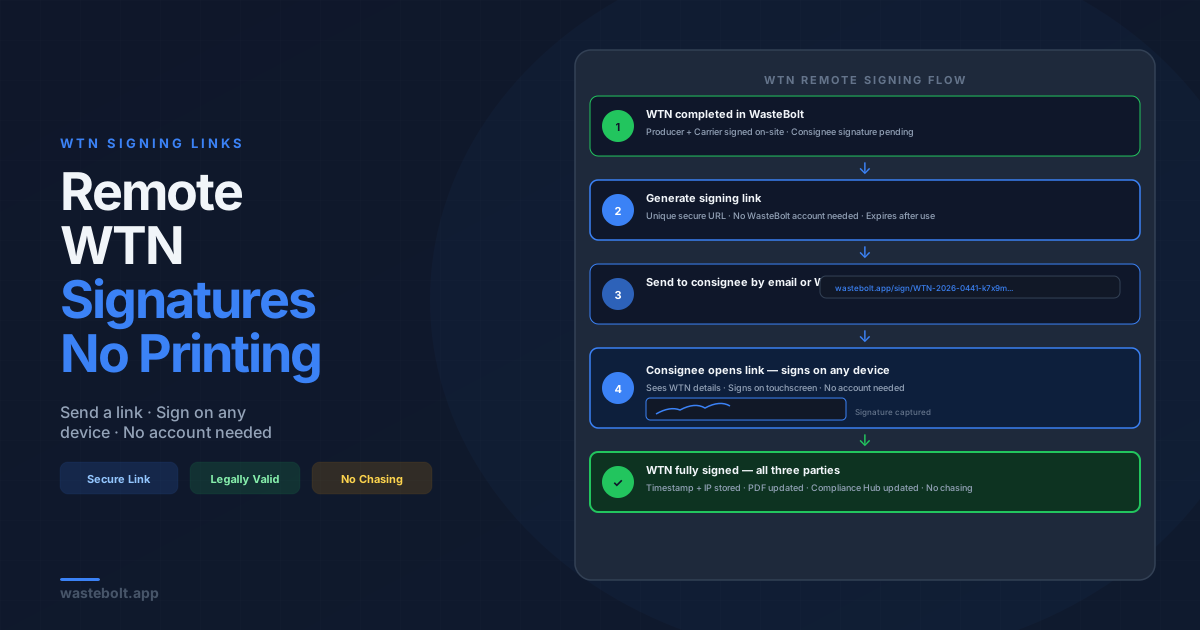
A signing link is a unique, secure URL that gives any recipient access to a specific WTN on a public-facing signing page — without needing a WasteBolt account. They open the link, see the WTN details, and sign using a touchscreen or mouse signature pad.
The signature is time-stamped, stored permanently against the WTN in WasteBolt, and the signed note is updated in the Compliance Hub automatically. No PDF needs to be emailed back. No follow-up is required once the link is sent.
How to Generate a Signing Link
Step 1 — Complete the WTN The WTN must be complete enough to trigger the completion dialog (70% threshold for non-hazardous, 75% for hazardous). Unsigned notes cannot have signing links generated for them.
Step 2 — Open the completion dialog When you mark the WTN complete, the WtnCompleteDialog appears with a list of post-completion actions.
Step 3 — Click "Generate Signing Link" WasteBolt generates a unique public URL for the signing page. This URL is specific to this WTN — it cannot be used to access other notes or any other part of WasteBolt.
Step 4 — Send the link Copy the link and send it via email, WhatsApp, or any other channel to the party that needs to sign. The "Send to Customer" option in the dialog sends it by email directly from WasteBolt.
Step 5 — Recipient signs The recipient opens the link on any device — phone, tablet, or desktop. They see the WTN details (read-only), confirm they are the correct signatory, and sign using the on-screen signature pad.
Step 6 — Signature confirmed The signature is recorded in WasteBolt with a timestamp. The WTN is updated to show the note as signed by that party. The signing link expires after use.
Who Can Sign via a Link
Any of the three parties can be sent a signing link:
Producer — if the producer was not present at the point of collection or if a second authorised signatory needs to countersign
Carrier — if the driver who made the collection needs to sign separately after returning to the depot, or if the carrier's company signatory is different from the driver
Consignee — the most common use case. The receiving site signs when the waste arrives, via a link sent from WasteBolt at the point of departure
The signing page shows the full WTN details so the recipient can confirm they are signing the correct document before committing their signature.
Sending the Link by Email from WasteBolt
Rather than copying the link and sending it manually, WasteBolt's "Send to Customer" option in the completion dialog sends the signing link by email directly.
The email includes:
- The WTN reference number
- A summary of the key details (waste type, EWC code, date)
- The signing link as a clear call-to-action button
- A note explaining that no WasteBolt account is needed to sign
The email is sent from WasteBolt to the email address stored in the producer, carrier, or consignee record. If the email address is in your pick-list for that entity, it pre-fills automatically.
Signing Links and the Three-Party Requirement
A WTN that has all three signatures is fully compliant. WasteBolt shows the signature status on each note:
- Unsigned — no signatures yet
- Partially signed — one or two parties have signed
- Fully signed — all three parties have signed
Notes that are complete but unsigned or partially signed appear in your Compliance Hub with a clear indicator. WasteBolt can filter your note list to show only unsigned or partially signed notes — making it easy to chase missing signatures in bulk.
See our missing WTN signatures guide for more on managing and chasing unsigned notes.
Security and Expiry
Each signing link is:
- Unique — generated specifically for one WTN and one signing session
- Public but specific — accessible without a login, but only shows the data for that specific WTN
- Time-limited — signing links expire after use or after a set period (typically 30 days)
- Tamper-evident — the signature is stored with a timestamp and the signer's IP address as part of the audit trail
The public signing page does not expose any other data from your WasteBolt account. The recipient sees only the WTN they are being asked to sign.
Common Scenarios
Skip hire — consignee signing remotely Driver collects a skip. Producer and driver sign at the kerbside in WasteBolt. Driver generates a signing link for the transfer station (consignee) and sends it by WhatsApp to the yard manager. The yard manager signs when the skip arrives. All three signatures in place before the WTN is filed.
Construction site — multiple authorised signatories Site manager signs as producer on collection. The principal contractor's compliance officer needs to countersign. A signing link is sent to the compliance officer by email. They sign from their desktop without visiting the site.
Hazardous waste — specialist contractor A hazardous waste specialist contractor takes a consignment. They sign as carrier on-site. The receiving hazardous waste facility receives a signing link when the waste arrives. They sign on receipt. The consignment note has all three signatures without any paperwork.
Chasing an old unsigned note An audit reveals a WTN from three weeks ago that was never signed by the consignee. Open the note in WasteBolt, generate a new signing link, and send it to the consignee with a brief explanation. They sign remotely and the note is updated — the audit trail is complete even though the original transfer happened weeks ago.
Frequently Asked Questions
Does the recipient need a WasteBolt account to sign? No. The signing page is public-facing. The recipient opens the link and signs without creating an account or logging in.
Are digital signatures legally binding? Yes. Electronic signatures are legally binding under the Electronic Communications Act 2000. A WTN signed electronically via WasteBolt's signing link carries the same legal weight as a handwritten signature. See our guide to electronic signatures on WTNs for the full legal position.
Can I generate a signing link for a partially signed note? Yes. If one or two parties have already signed and you need to chase the remaining signature, you can generate a new signing link for the unsigned party.
What if the recipient loses the email with the signing link? Generate a new signing link from the WTN in WasteBolt and resend it. Each link is unique — the old link is invalidated when a new one is generated for the same party.
Is there a record of who signed and when? Yes. Each signature is stored with a timestamp and the signer's IP address. This forms part of the permanent audit trail against the WTN.
Last updated: June 2026. Signing links are available on all paid WasteBolt plans via the WTN completion dialog.